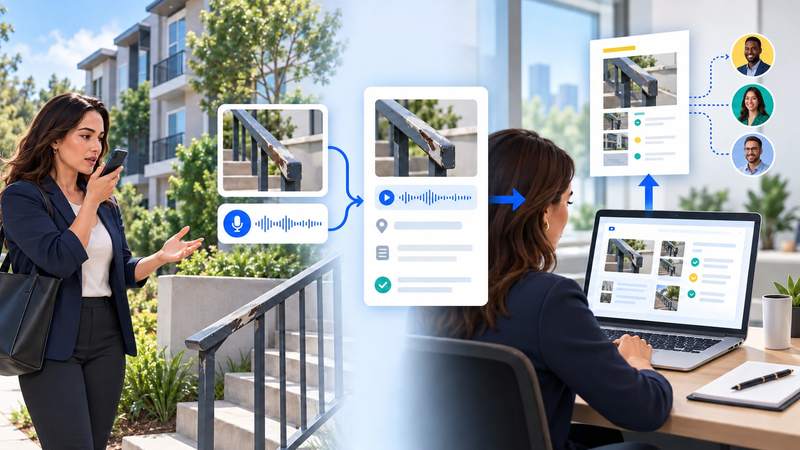
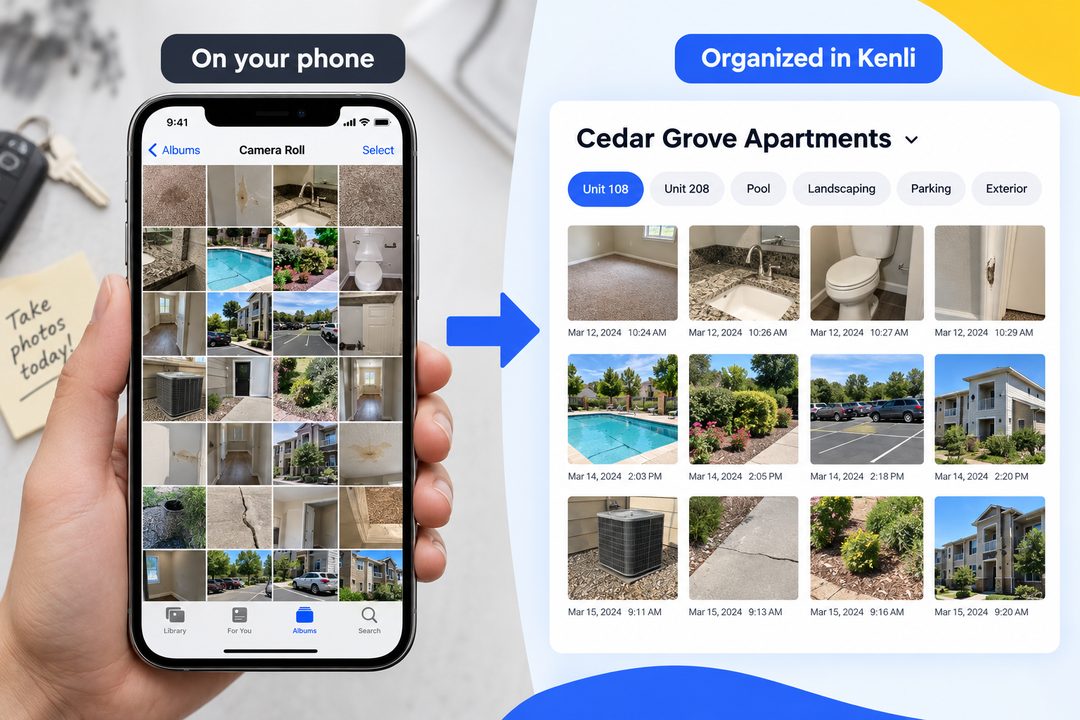
Property walks can leave your phone full of carpet, countertop, pool, and maintenance photos. They take up space—and later, it is hard to remember which property or unit they came from and why you took them.
Take the photo inside Kenli instead. It stays with the property, keeps the context around what you saw, and can become work your team can follow up on.
Capture the photo and the context around it
While you are looking at the issue, say what you see and what needs to happen next. Then take the photo in Kenli.
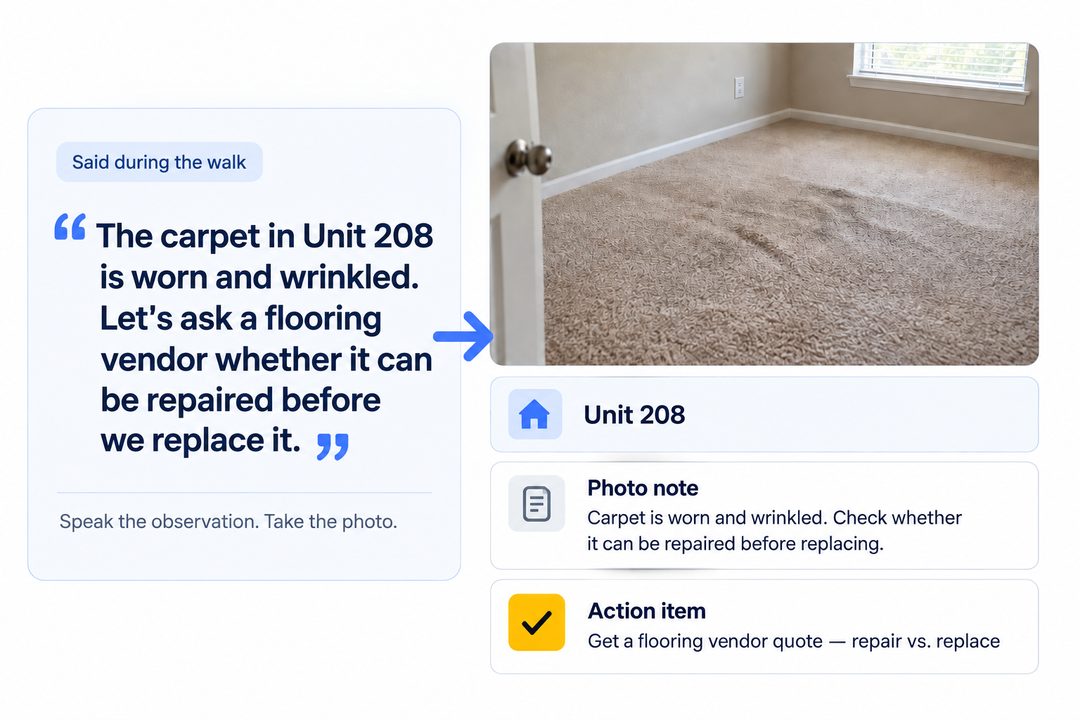
Kenli uses what was being discussed to draft the photo note, so the image stays connected to its context after the walk.
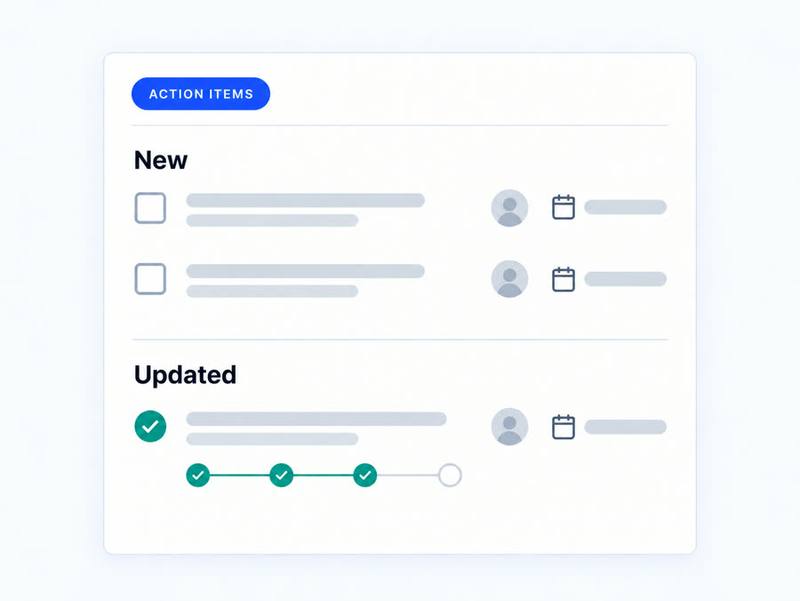
Kenli turns the observation into follow-up
The photo can stay organized under the property and unit, while the decision in your conversation becomes an action item instead of another thing someone has to remember.
Find it by property—not by scrolling through your phone
Choose the property, then filter its photos by unit or area—such as Unit 108, Unit 208, Pool, Landscaping, or Parking—or create your own tag. Each photo keeps its timestamp, so you can see where and when it was captured.
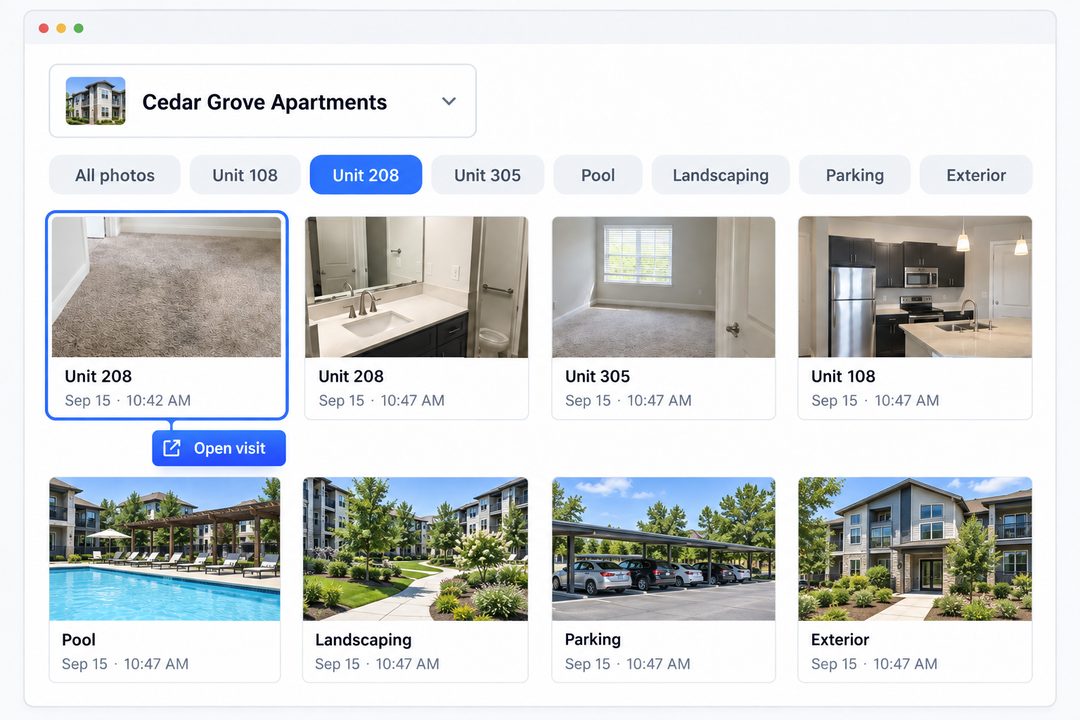
- Open the original visit when you need the conversation behind the photo.
- Download or share the relevant photos when it is time to get a bid or update the team.
Take one issue photo in Kenli. Say what you see and the next step out loud. Then check the photo note and action item after the visit.
Tell us what kind of property photos are taking over your camera roll: hello@kenli.ai