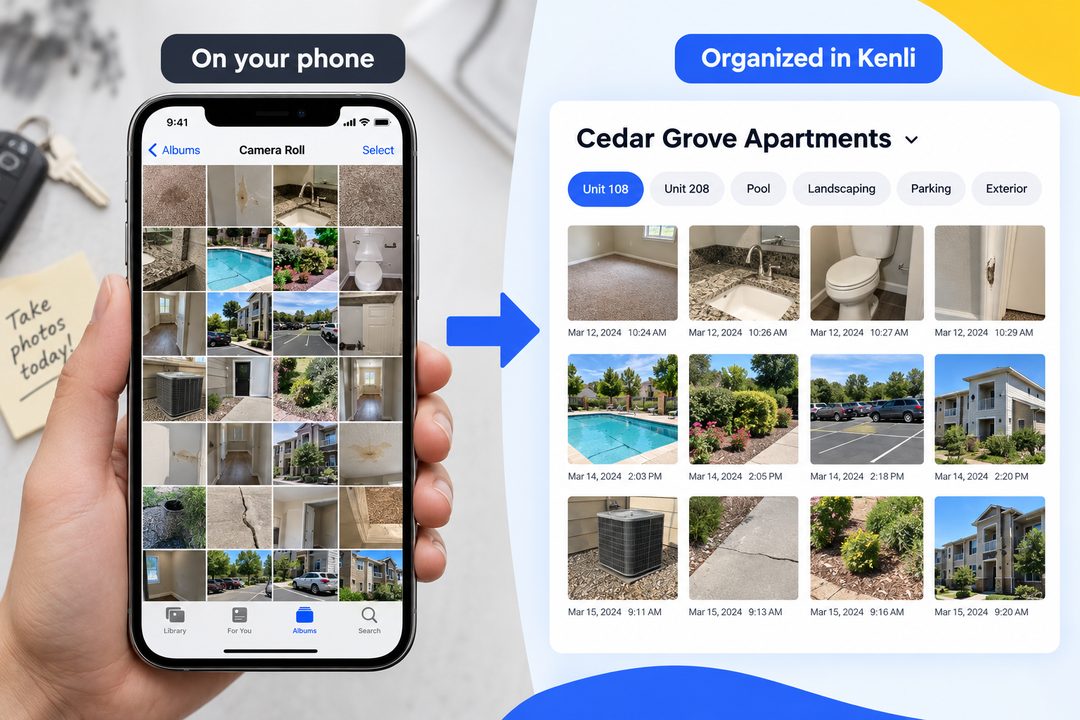
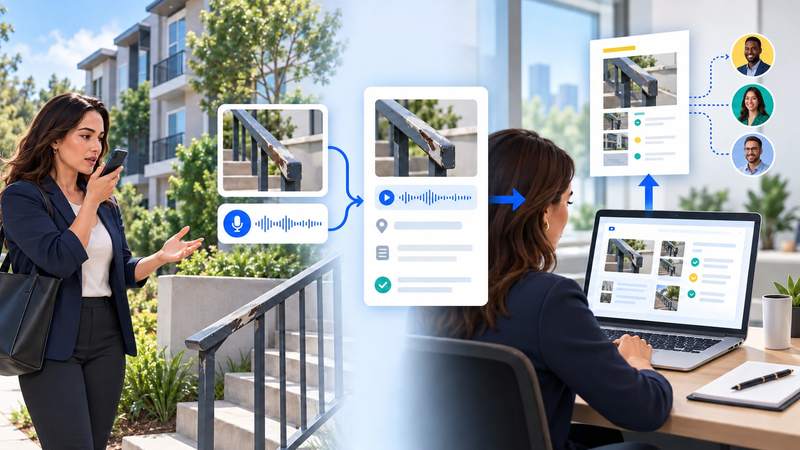
Kenli 1.0.1 is rolling out on iPhone and Android. This update makes it easier to start the right kind of recording, use Ask AI while you are on the go, and fix photo tags after the visit.
Tell Kenli what you are recording
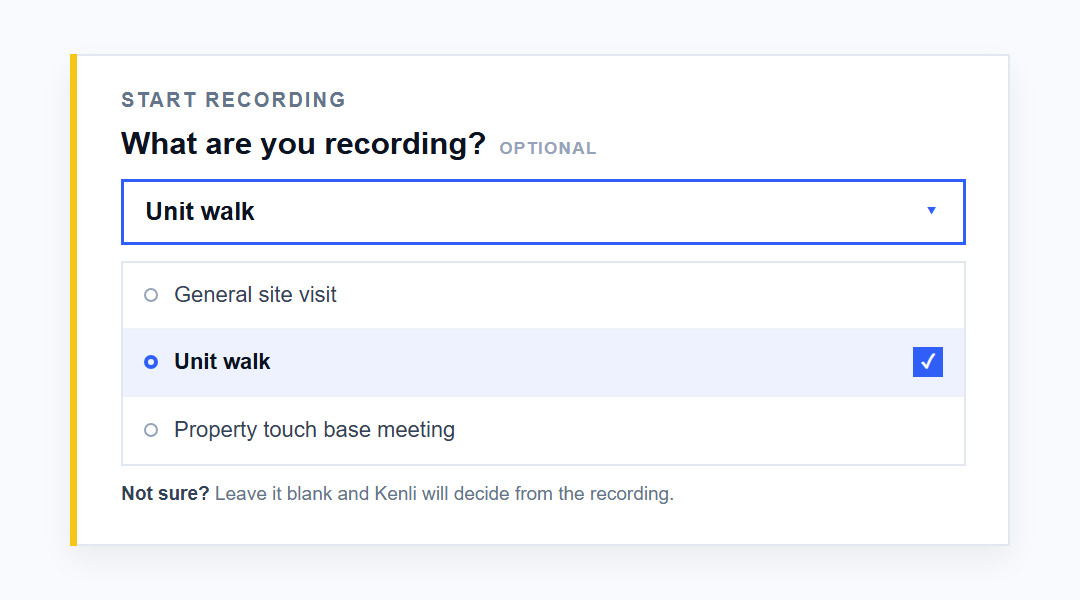
Before you start, choose General site visit, Unit walk, or Property touch base meeting. Kenli uses that choice to create the right kind of recap.
- For a Unit walk, add the unit number so it carries into the photos and report.
- Not sure which one to choose? Leave it blank and Kenli will decide from the recording.
Ask Kenli out loud
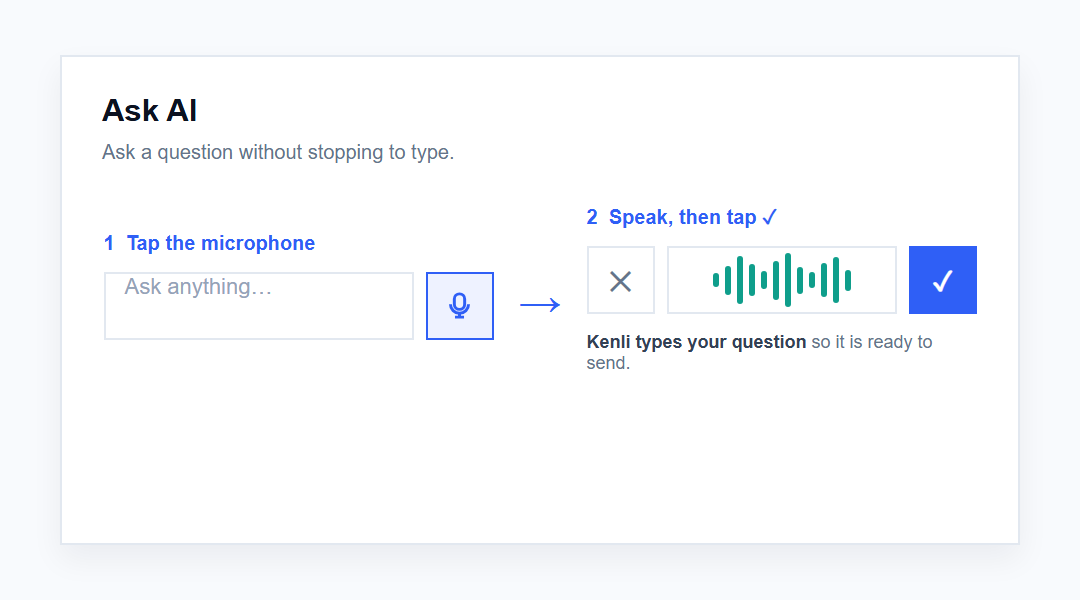
In Ask AI, tap the microphone and say your question instead of typing it. Tap ✓, and Kenli turns what you said into text so it is ready to send.
Fix photo tags after the visit
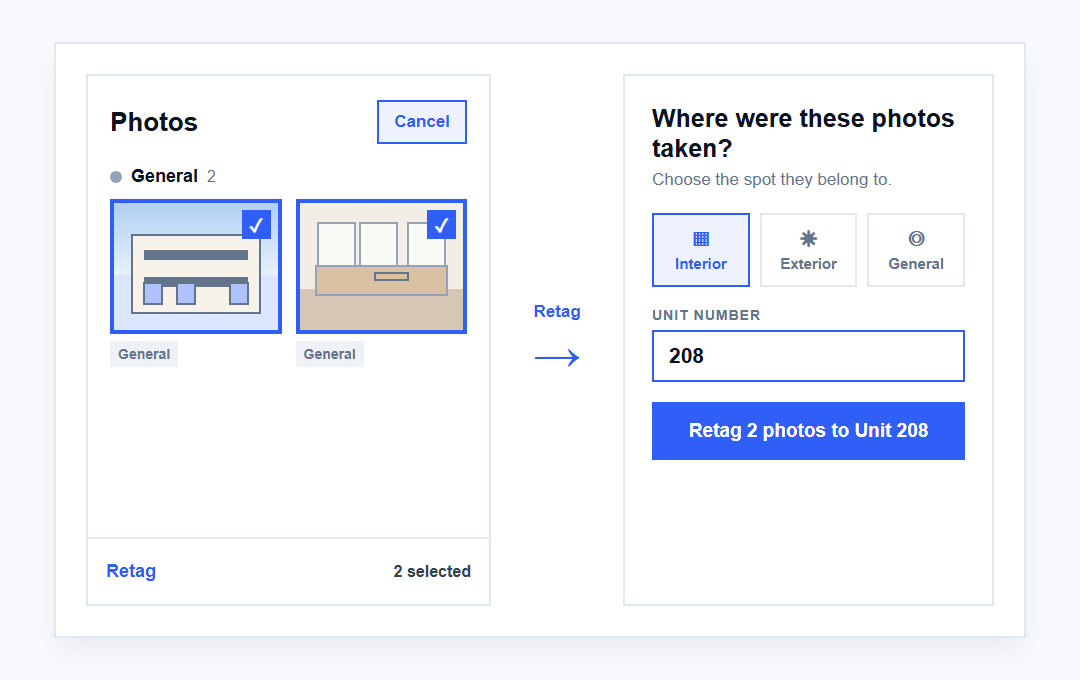
Tagged a photo incorrectly—or skipped the details while you were walking? Open Photos later, tap Select, and move one or several photos to the right unit or area. You can stay focused on the property and organize everything when you have time.
The same Select mode also lets you download or delete several photos at once.
The update is rolling out through the App Store and Google Play.
If anything looks off or you have feedback, email hello@kenli.ai.