Ever noticed a name or term spelled incorrectly throughout a meeting?
Now, you can fix it once—and update every occurrence in the meeting.
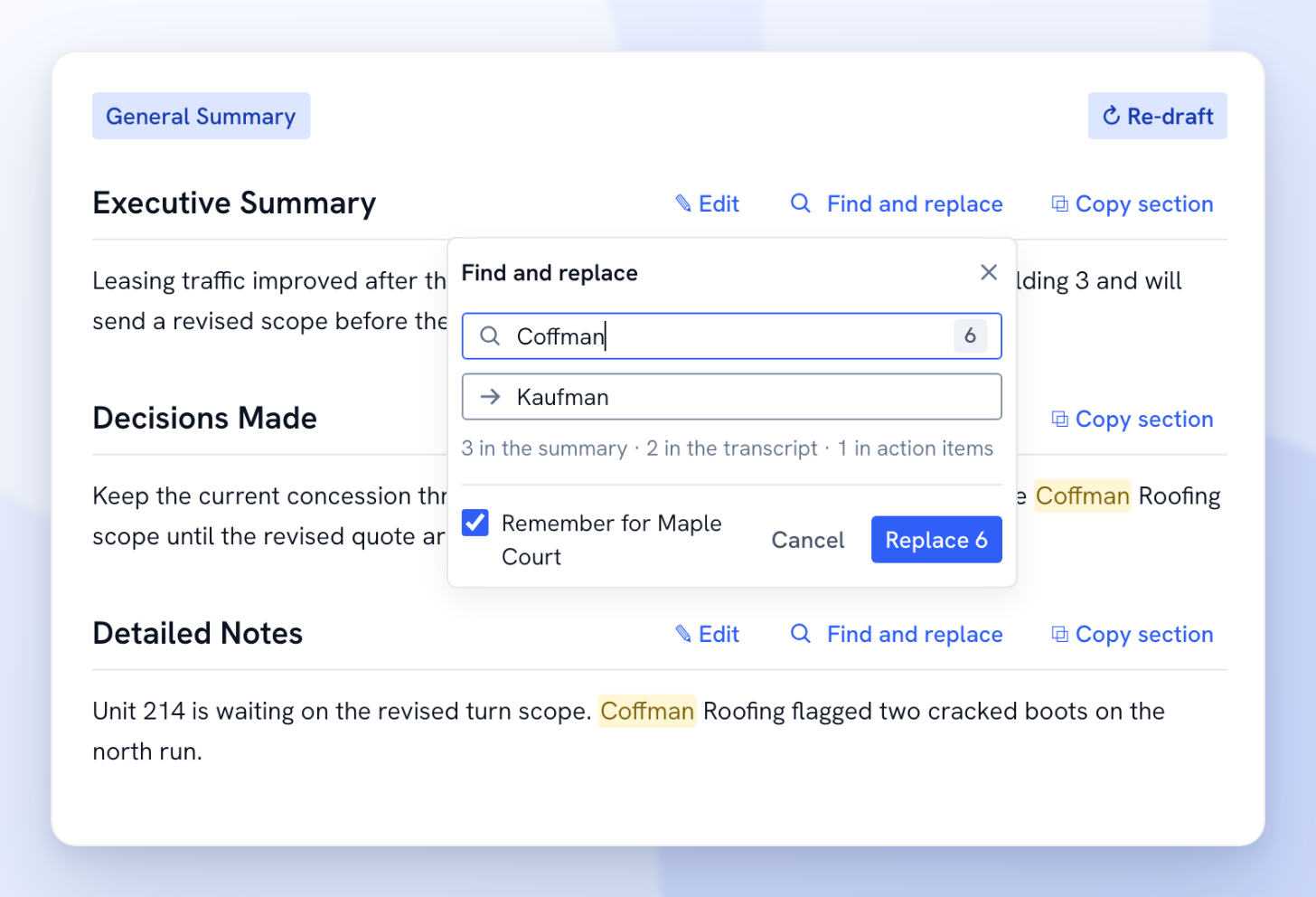
Just open a meeting, select Find and replace, and enter the word you want to change. Kenli shows how many times it appears and where, so you can review before replacing.
You will also see Remember for your property in that box. That is the property Dictionary, which teaches Kenli the word for future recordings.
One change, three places
Find & Replace updates the word everywhere it appears in the meeting summary, transcript, and action items—all in one step.
And if you change your mind, you can easily undo it.
Summary · Transcript · Actions
Summary · Transcript · Actions
Fix one name. Update the rest in one click.
When you correct a name directly in a meeting summary, Kenli automatically checks whether it appears elsewhere in the meeting and offers to update those instances, too.
Simply click Change all to update the remaining instances across the meeting, or Dismiss to leave them unchanged.
Where to find it
On the web, open a meeting you recorded and select Find and replace next to Edit in any summary section.
One change. Every mention updated.
Make your next meeting easier to review with Find & Replace.